


Video Aspect Ratio Changer
Change video aspect ratio without cutting anything out. This video aspect ratio changer keeps your whole picture and uses AI to generate what is needed for the new shape: taller for TikTok, wider for YouTube, square for feeds.
- 16:9, 9:16, 1:1, 4:3, 3:4 and 21:9, at 480p, 720p or 1080p
- MP4 or MOV, up to 120 seconds and 100 MB, with the audio kept
- First 5 seconds of one video free at 480p after Google sign-in
What aspect ratio means for a video
Aspect ratio is the width of a video compared with its height. 16:9 is 16 units wide for every 9 tall, the landscape shape of YouTube, laptops and TVs. 9:16 is the same shape stood upright, used by TikTok, Reels and Shorts. 1:1 is square, 4:3 and 3:4 are the boxier shapes of older footage and tablets, and 21:9 is ultra-wide.
Resolution is a separate setting. A resolution such as 720p tells you how much detail a video has, not its shape; a 1080p video can be 16:9 or 9:16. When you change video aspect ratio, the shape changes, and the resolution you pick decides how sharp the result is. A video aspect ratio changer works on the first; the resolution menu handles the second.
Common aspect ratios and where they are used
These are the shapes this video aspect ratio changer can produce:
| Aspect ratio | Shape | Where it is used |
|---|---|---|
| 16:9 | Landscape | YouTube, TVs, laptops, slide decks |
| 9:16 | Vertical | TikTok, Instagram Reels, YouTube Shorts, Stories |
| 1:1 | Square | Instagram and Facebook feeds, marketplace listings |
| 4:3 | Boxy landscape | Older TV footage, tablets |
| 3:4 | Boxy portrait | Feeds and tablets held upright |
| 21:9 | Ultra-wide | Cinematic banners, website headers |
A typical job is a jump between the first two: a widescreen video that needs to run on TikTok, or a phone video that needs to fill a YouTube player.
One video often needs several of these. Each platform squeezes whatever does not fit its player: a 16:9 video in a vertical feed plays as a thin band, and a vertical video in YouTube's main player sits between wide bars. It makes sense to change video aspect ratio once per platform instead of letting each one decide for you.
Crop, pad, blur, stretch or expand: how a video aspect ratio changer works
Every video aspect ratio changer faces the same problem. The target has room the old video never filled, or the old video has picture the target cannot hold. There are five ways to deal with it.
| Method | Keeps the whole video | Fills the screen | Main drawback |
|---|---|---|---|
| Crop | No | Yes | Cuts off subjects near the edges |
| Black bars (padding) | Yes | No | Empty bars, especially on phones |
| Blur fill | Yes | Yes, with a blurred copy | Looks like a workaround |
| Stretch | Yes | Yes | Distorts faces and objects |
| AI expansion | Yes | Yes | Takes processing time and is paid per second |
Crop, padding and blur are reasonable choices, and a basic video editor can do any of them in seconds. Crop when the subject sits in the middle with empty space around it. Pad when the footage must stay exactly as shot, for legal or archive use. Blur is fine for a quick repost. Avoid stretching.
This video aspect ratio changer offers the option a basic editor can't: AI expansion. Instead of cutting or padding, this kind of video aspect ratio converter generates new scene content around your footage, which stays in the center unchanged. The generated edges take the neighboring frames into account, so they move with the camera.
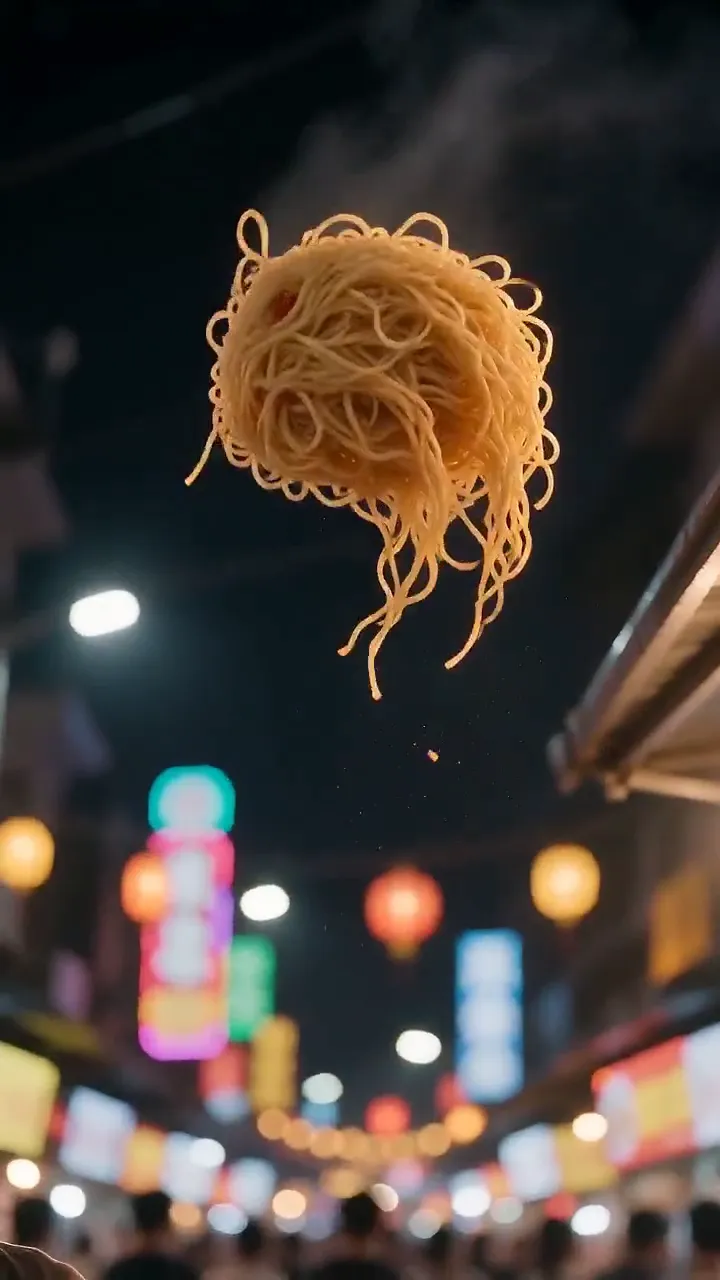
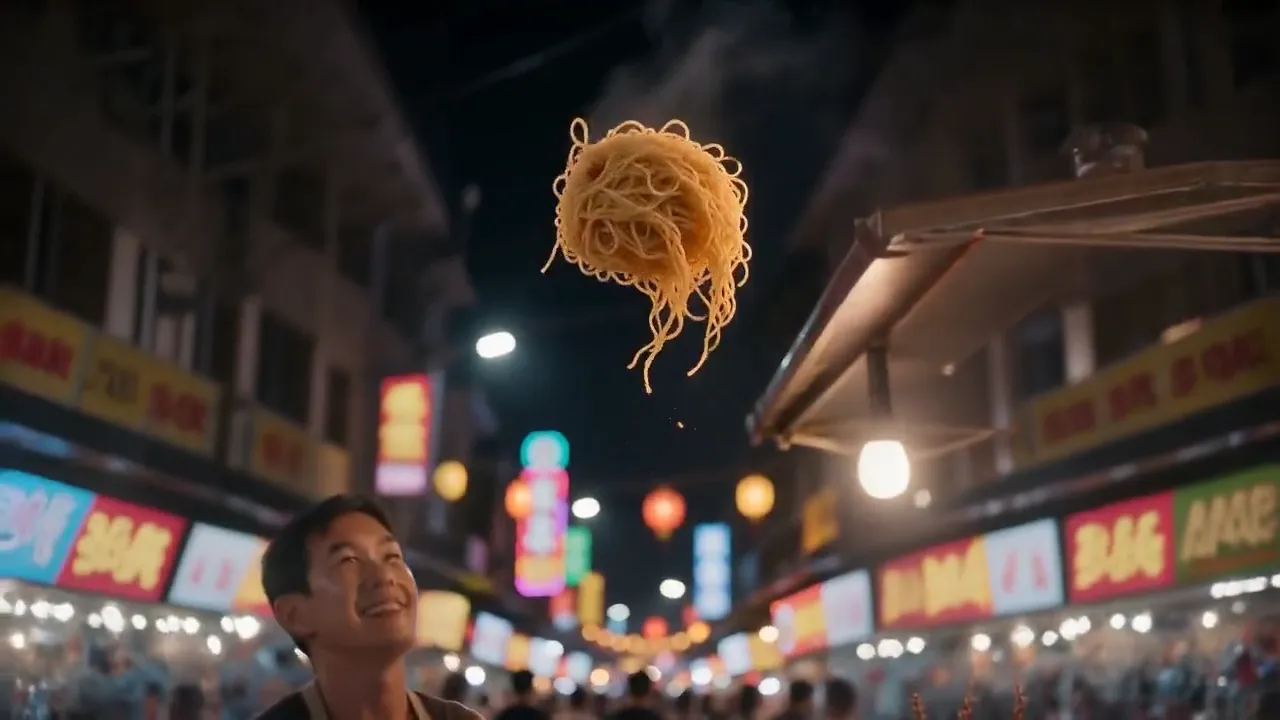
How much of the new frame the AI fills
The bigger the change in shape, the more the video aspect ratio changer has to create. These figures are simple geometry, with your video scaled to fit the new frame:
| Aspect ratio change | Your footage covers | AI generates |
|---|---|---|
| 16:9 → 4:3 | 75 % of the height | 25 % |
| 16:9 → 21:9 | 76 % of the width | 24 % |
| 4:3 → 16:9 | 75 % of the width | 25 % |
| 16:9 → 1:1 | 56 % of the height | 44 % |
| 1:1 → 16:9 | 56 % of the width | 44 % |
| 16:9 → 9:16 | 32 % of the height | 68 % |
| 9:16 → 16:9 | 32 % of the width | 68 % |
Small changes rely mostly on your real footage. Big jumps such as 16:9 to 9:16 still work, but they depend more on a clear scene and, ideally, a short prompt describing what lies beyond the edges. If a placement accepts more than one aspect ratio, the one closer to your source needs less invention.
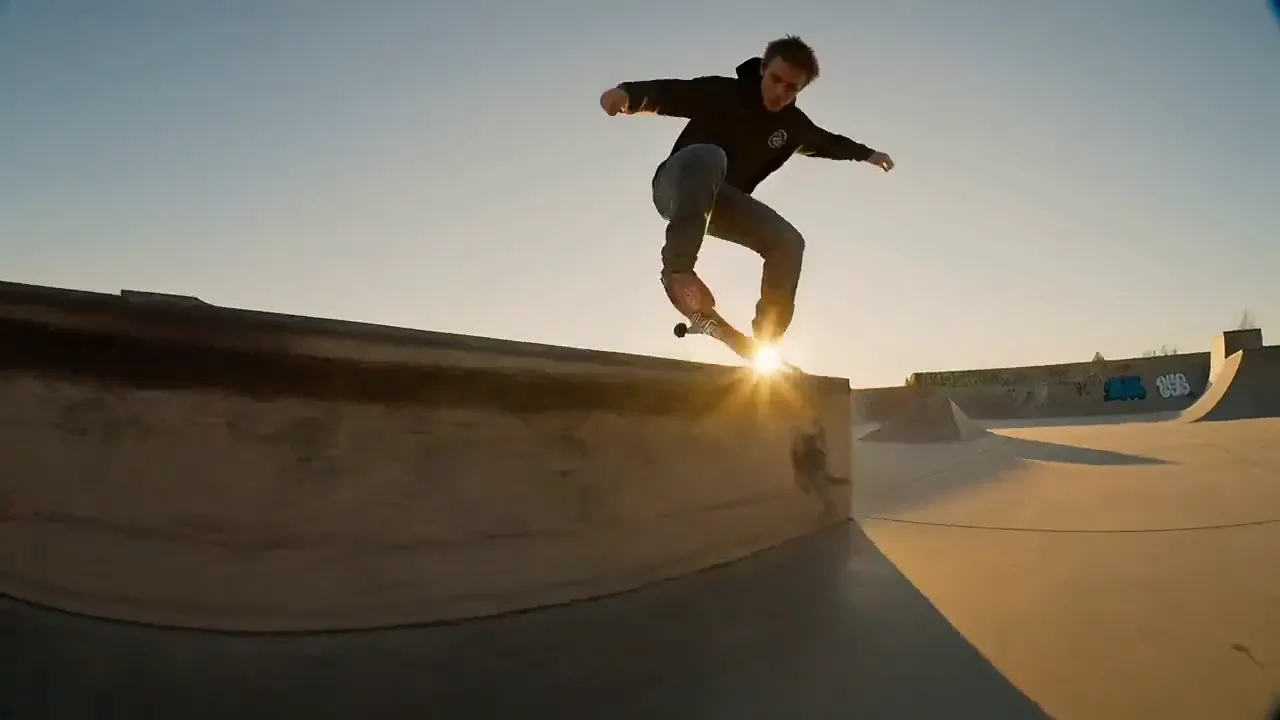
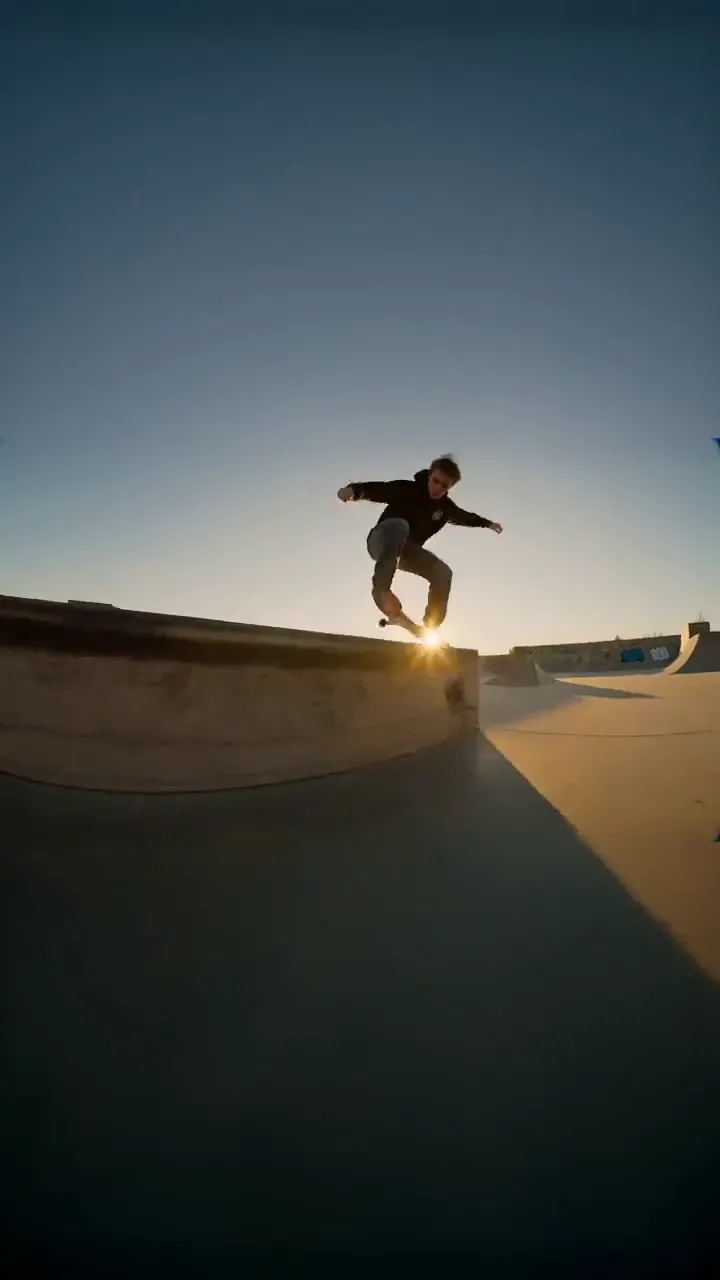
Examples of aspect ratio changes from our tests
- 16:9 to 9:16. A widescreen skateboarding video became a vertical one for Reels and TikTok. Instead of losing the sides to a crop, the AI continued the sky and the ramp above and below the rider.
- 1:1 to 16:9. A square product video of a perfume bottle became widescreen. The AI continued the petals and reflections to both sides, and the bottle stayed exactly as filmed.
- 16:9 with letterbox bars to 9:16. A widescreen video that still had black bars in it was expanded to vertical, and the bars ended up in the middle of the new frame. That result is why bars are now trimmed before the AI step.

How to change video aspect ratio with AI
- Upload a video. MP4 or MOV, up to 120 seconds and 100 MB. The length is read in your browser first, so you see the cost before anything is processed.
- Pick the new aspect ratio and resolution. Choose one of six ratios and 480p, 720p (the default) or 1080p. Add an optional prompt to steer what the AI adds.
- Let bars be trimmed first. If the video already has letterbox or pillarbox bars, they are detected in your browser and trimmed, so they don't end up inside the new frame.
- Download the MP4. The audio is kept. A 5-second clip took 40 to 70 seconds in our tests.
When a crop is the better choice
A video aspect ratio changer with AI is not always the right tool, and it is worth saying when it isn't. If your subject is small and centered, with plenty of empty space around it, a crop gets you to the new shape at no cost and keeps every pixel real. If the footage is evidence, a legal record or an archive master, padding with bars is the honest option, because nothing is added. AI expansion is the better choice when the subject fills the video or sits near an edge, when a crop would cut off heads, products or text, or when the result has to look as if it was filmed in the new aspect ratio.
A quick way to decide: picture the crop first. If nothing you care about falls outside it, crop. If something does, use the AI video aspect ratio converter instead.
Who uses a video aspect ratio changer
- Social media managers turn one 16:9 master into 9:16 for Reels, Shorts and TikTok, and 1:1 for feeds.
- Ad teams run each creative through a video aspect ratio converter to fit fixed placements, with the product in full view.
- YouTubers bring 4:3 archive footage and square posts into a 16:9 edit without pillarbox bars.
- Web designers turn 16:9 b-roll into 21:9 banners for a site header.
- AI video makers fix results from generators that only offer one or two aspect ratios.
Before you use the video aspect ratio changer
- Go straight to the final format. Choose the aspect ratio the platform wants rather than converting in stages.
- Trim to the part you need. You pay per second, with a 3-second minimum, so cut intros and pauses first.
- Test at 480p. It costs 2 credits per second, against 4 at 720p and 10 at 1080p. Check the framing, then render the final version.
- Prompt for big jumps. For 16:9 to 9:16 or the reverse, name the setting ("snowy forest", "busy office") so the added area matches.
Video aspect ratio changer FAQ
What does a video aspect ratio changer do?
It changes the shape of a video, for example from 16:9 to 9:16. Simple tools crop, add bars or blur the background; this one uses AI to generate new picture around your footage.
Is a video aspect ratio converter the same as a video aspect ratio changer?
Yes. Both names describe the same job: taking a video from one aspect ratio to another.
Can I change video aspect ratio without cropping?
Yes. AI expansion keeps the entire video and adds new content around it, so nothing is cut.
Can I just crop or add black bars here?
This page currently offers AI expansion only. If a crop or bars suit your video, any basic video editor can do it.
Which aspect ratios are supported?
16:9, 9:16, 1:1, 4:3, 3:4 and 21:9, at 480p, 720p or 1080p.
Does my footage change?
No. It stays in the center as it was; the AI only paints around it. The audio is kept too.
How much does it cost?
The first 5 seconds of one video are free at 480p after Google sign-in. Paid jobs are charged per second of video, plans start at $9.90 a month, and failed jobs are refunded automatically.
How long does it take?
A 5-second clip took 40 to 70 seconds in our tests. Longer videos take longer, and results wait in your history for 30 days.
Change the shape, keep the whole video
Try the video aspect ratio changer on your own footage: upload it, pick an aspect ratio, and see a 5-second AI preview at 480p before you pay anything.
Change aspect ratio