


Remove Black Bars from Video
Remove black bars from video without measuring pixels or typing crop values. Upload a video and letterbox bars (top and bottom) or pillarbox bars (left and right) are detected in your browser and trimmed. Then decide: keep the trimmed video, or let the AI expand it back out to the shape you need.
- Letterbox and pillarbox bars found automatically
- Expand with AI to 16:9, 9:16, 1:1, 4:3, 3:4 or 21:9, with the sound kept
- MP4 or MOV, up to 120 seconds and 100 MB
Letterbox, pillarbox and where black bars come from
Bars appear when the image is a different shape from the frame around it. Letterbox bars sit above and below an image that is wider than its frame, such as a film-style video saved at 16:9. Pillarbox bars sit to the left and right of an image that is narrower than its frame, such as a phone video or old 4:3 footage inside a 16:9 file.
Bars in the file usually come from one of these:
- a vertical phone video placed in a 16:9 editing timeline and exported as is
- trailers and film-style footage exported with the letterbox included
- old 4:3 TV or camcorder footage digitized into an HD frame
- screen recordings, and videos downloaded and re-uploaded several times
Black bars in the file vs bars from the player
Not all bars are the same. A player adds bars on the fly when the screen and the video don't match, and those vanish on a screen with the right shape. Burned-in bars are real black pixels in every frame. They follow the video to every platform, shrink the picture on every device and get in the way of editing. Those are the bars this tool removes.
A quick test: open the video in any editor. If the bars show up in the editor's preview, they are in the file.
Why burned-in bars hurt on phones and TVs
Burned-in bars cost you screen space twice. Play a letterboxed 16:9 video on a phone held upright and the player already shrinks it to a band across the middle; the bars inside the file make the actual footage smaller still. On a TV, a pillarboxed vertical video is just as wasteful: the image between the bars uses less than a third of the screen.
Trimming the bars gives the player the real footage to work with. AI expansion then makes it the right shape as well, so it covers the whole display instead of sitting in a box.
Why doing it by hand is fiddly
Most editors can remove black bars from video, but only by hand. You have to find the exact size of each bar in pixels, crop every side, then scale and export again. Bars are often not pure black after compression, so the edge between bar and image can be hard to see, and a crop that is a few pixels off leaves a thin dark line or cuts into the picture.
This black bars video remover does that part for you. Detection runs automatically in your browser, so there is nothing to measure.
What happens when you remove black bars from video
Trimming removes black pixels, not footage, but it also changes the shape of the file. Take 4:3 footage with pillarbox bars inside a 16:9 file: once the bars are trimmed, you have a 4:3 video. Play it full screen on a 16:9 TV and the player adds bars again, this time on the fly. Trimming alone cannot make a 4:3 video cover a 16:9 screen.
So when you remove black bars from video, you end up with three options:
| Option | What you get | Good for |
|---|---|---|
| Keep the trim | The image alone, in its true shape | Editing, reframing, archives |
| Zoom in (in any editor) | A full screen, but part of the real footage is cut off | Footage with plenty of empty space |
| AI expansion | The whole picture in the center, with new scene content where the bars were | Fixed formats: YouTube, Reels, TVs |
AI expansion is what turns a black bars video remover into a full fix. It generates the area the bars used to cover, keeps your footage in the center unchanged, and can target a different shape at the same time: trim the letterbox off a 16:9 video and expand straight to 9:16 for Reels.
Order matters, so remove black bars first. If you expand a video with the bars still in it, the AI treats them as part of the scene. In our tests, a 16:9 video with letterbox bars expanded to 9:16 came back with the black bars still visible in the middle of the new frame. That is why the bars are trimmed before the AI step.
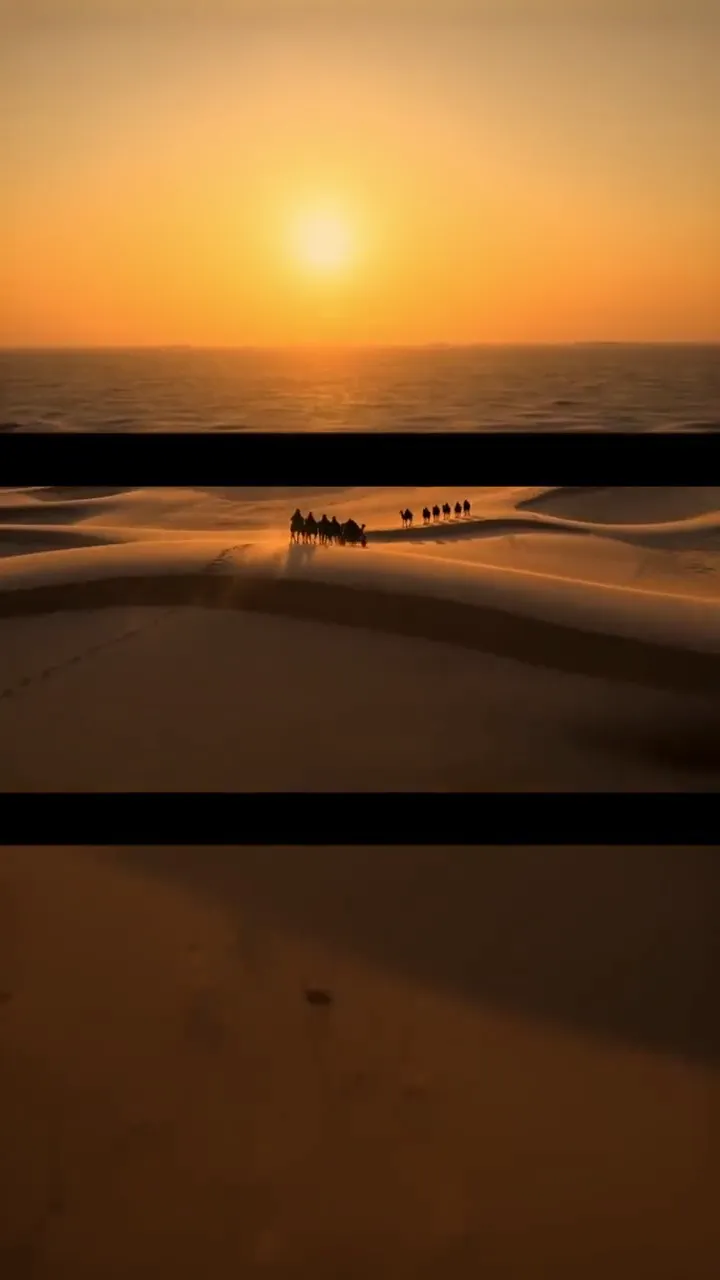
What you get after trimming
What you get after you remove black bars from video depends on what was inside the bars. Sometimes the trim is all you need.
| You start with | After trimming | Next step |
|---|---|---|
| A 9:16 phone video inside a 16:9 file (pillarbox) | A 9:16 video | Post it to Reels, TikTok or Shorts as is, or expand to 16:9 with AI |
| 4:3 footage inside a 16:9 file (pillarbox) | A 4:3 video | Expand to 16:9 for a modern edit |
| A 16:9 video inside a 4:3 file (letterbox) | A 16:9 video | Usually nothing more: 16:9 is already the YouTube shape |
| Film-style widescreen inside a 16:9 file (letterbox) | A video wider than 16:9 | Expand back to 16:9, or to 9:16 for vertical platforms |
Not sure which row you are in? Check the bars: above and below the image means letterbox, on the left and right means pillarbox.

How to remove black bars from video
- Upload the video. MP4 or MOV, up to 120 seconds and 100 MB.
- Let the bars be found. The uploader detects letterbox or pillarbox bars in your browser and trims them.
- Choose what to keep. Stop at the trim, or pick a ratio (16:9, 9:16, 1:1, 4:3, 3:4 or 21:9) and a resolution (480p, 720p or 1080p) for AI expansion.
- Get your video. Results expanded with AI come back as an MP4 with the sound kept. A 5-second clip took 40 to 70 seconds in our tests.
Who needs a black bars video remover
People remove black bars for different reasons:
- Editors cleaning footage before it goes into a new timeline, so bars don't end up stacked inside more bars.
- Creators taking old letterboxed uploads to Shorts or Reels, where the bars waste most of a vertical screen.
- Families and archivists with digitized home videos sitting in a pillarboxed HD frame.
- Marketers turning a letterboxed brand film into square or vertical ads.
- Anyone about to expand a video with AI. Trimming first keeps the black bars out of the result.
Tips for a clean result
- Check the edges after trimming. Very dark scenes near the border of the frame can look like black bars. Make sure nothing you need was cut.
- Split mixed videos. If some shots have bars and others don't, cut the video into separate parts before you remove black bars, so each one is trimmed correctly.
- Aim for the shape you need, not the shape you had. If the trimmed 4:3 video is going to Reels, expand straight to 9:16.
- Use a prompt for large gaps. Pillarbox bars around a vertical video cover about two thirds of a 16:9 frame. A short description of the setting helps the AI fill that much space.
- Start from the best copy you have. A re-downloaded video often has compression on top of the bars, and the AI can only match what it sees.
Remove black bars from video: FAQ
How do I remove black bars from video automatically?
Upload your video. Letterbox and pillarbox bars are detected in your browser and trimmed, so you don't have to measure them. Then use the trimmed video as it is, or expand it with AI.
What is the difference between letterbox and pillarbox?
Letterbox bars run along the top and bottom of an image that is wider than its frame. Pillarbox bars run down the sides of an image that is narrower than its frame.
Does the aspect ratio change when I remove black bars from video?
Yes, trimming alone changes it: the file takes the shape of the footage inside. To get back to the original shape without black bars, expand the frame with AI.
Will it cut off my picture when I remove black bars?
Trimming is aimed at the black bars only. Check the result if your footage has very dark edges.
Why remove black bars before expanding?
The AI would treat the bars as scenery and carry them into the new frame, as it did in our tests.
How much does AI expansion cost?
The first 5 seconds of one video are free at 480p after Google sign-in, one per account. After that it is 2, 4 or 10 credits per second at 480p, 720p or 1080p, with a 3-second minimum. Failed jobs are refunded automatically.
Does the sound stay?
Yes. The expanded MP4 keeps the soundtrack of your video.
How long do you keep my files?
Uploads are deleted after 3 days and results after 30 days, so download anything you want to keep.

Lose the black bars, keep the whole picture
Remove black bars from video in one upload: letterbox and pillarbox bars are detected and trimmed, and the AI can expand the frame back out. Try the first 5 seconds at 480p before you pay anything.
Remove black bars